QR code storage bins: a garage system that lasts
How to label storage bins with QR codes so anyone in the house can scan a bin and see what's inside, without opening it.
 The BoxTrack team · · 4 min read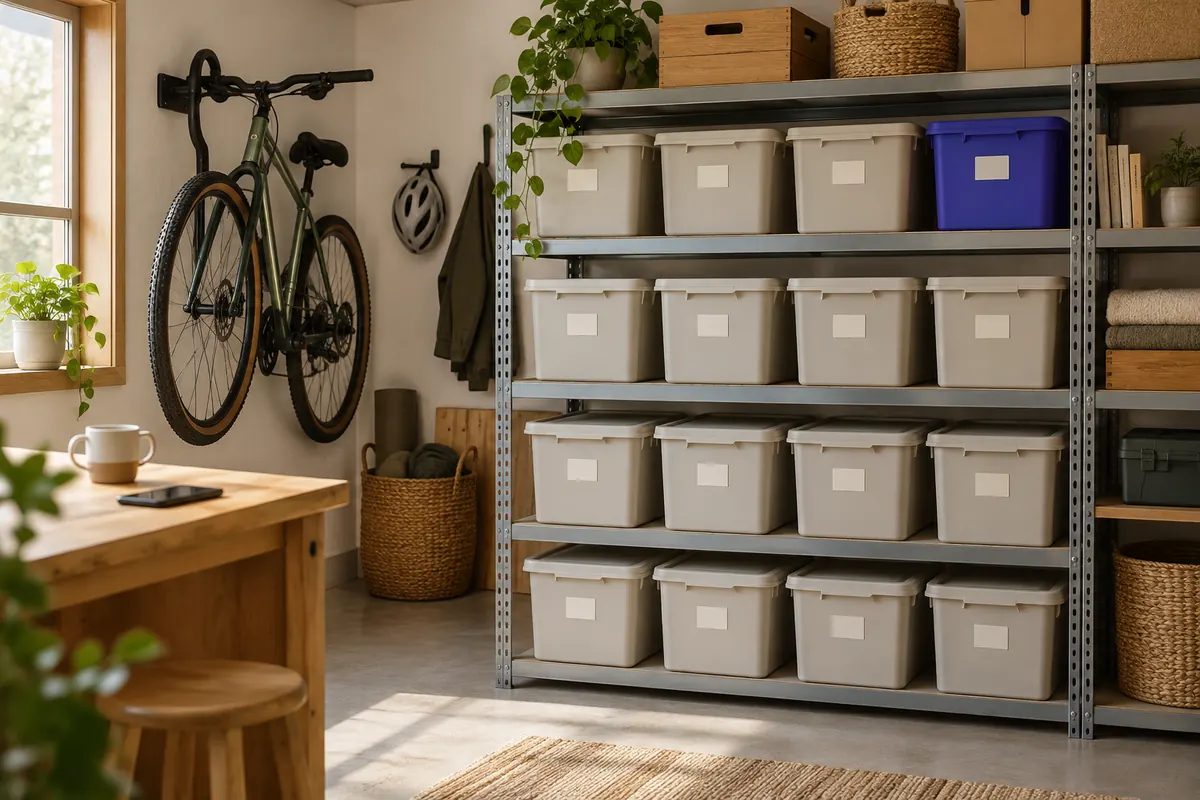
It's the first cold Saturday and you need the snow brush. The garage has 18 grey bins on metal shelves. Three are marked "WINTER" in marker that has faded since you wrote it. You open all three, then two more marked "MISC," and find the snow brush in a bin of beach towels.
QR code storage bins fix this by putting the list on your phone instead of on the lid. You stick a code on each bin. When you scan it, you see a list of what's inside, with photos. When the contents change, you update the list and keep the same label.
Marker, label maker or QR code
| Marker | Label maker | QR code | |
|---|---|---|---|
| Shows the full contents | ✗ | ✗ | ✓ |
| Has photos of items | ✗ | ✗ | ✓ |
| Easy to update when contents change | ✗ | ✗ | ✓ |
| Searchable from the house | ✗ | ✗ | ✓ |
| Readable without a phone | ✓ | ✓ | ✗ |
The last row matters. Keep a short word on each bin too, like "Camping" or "Xmas lights", so you can still find a bin when your phone's in the house. The QR code holds everything else.
We go into this further, for moving boxes rather than bins, in QR code labels vs writing on boxes.
Why a scuffed label still scans
Garage labels get dusty, scratched and bent. QR codes are built for that. They include error correction, which means a scanner can still read a code even when part of it is missing. There are four levels, according to TEC-IT's QR code reference:
You usually don't pick the level yourself, because the app that makes your labels does. Even so, a label that has peeled back at one corner will often still work. A label that is half gone won't, so replace it when it starts to fail.
Setting it up, one shelf at a time
An afternoon in the garage
- Step 1Pull every bin out and group them by what's inside
- Step 2Number the bins and make one entry per bin in your app
- Step 3Open each bin, take a photo, list what's in it
- Step 4Print the labels and stick them on two sides
- Step 5Note where each bin lives, like shelf, row or corner
Group the bins first. Put camping with camping and holiday with holiday. A bin that has a clear purpose is easier to keep tidy.
Stick a label on two sides. Bins get stacked and turned around. A label on the lid can't be seen once another bin sits on top of it, so put one on the end that faces out and one on the long side.
Write down where each bin sits. "Shelf B, top" or "back wall, left." A list that tells you the snow brush is in bin 14 helps more when it also tells you where bin 14 is.
Who can scan the labels
This is the question that matters most when you pick an app, and the one people forget to ask. Some QR labels only open inside the app that made them. That means your partner, your kids, or a friend helping you clear out the garage have to install the app and sign in before they can look.
The alternative is a label that opens in a phone's own camera. On an iPhone, Apple's guide shows you open the Camera, point it at the code and tap the link that appears. Most Android phones do the same through the camera or Google Lens.
Our comparison of QR code storage bin apps lists which apps work which way.
Making it stick
Most bin systems fail because nobody updates the list, not because the labels fall off. Two habits help:
- Update the list when you put something in, not later. It takes a few seconds with the bin already open.
- Do a yearly sweep. The weekend you bring the holiday bins down is a good time to check the whole shelf.
If you're storing things in a rented unit as well as at home, the same system works there. Our free storage unit inventory list is a printable version, and how to set up a storage unit covers aisles and layout. For seasonal bins there are also free holiday storage labels.
Doing it with BoxTrack
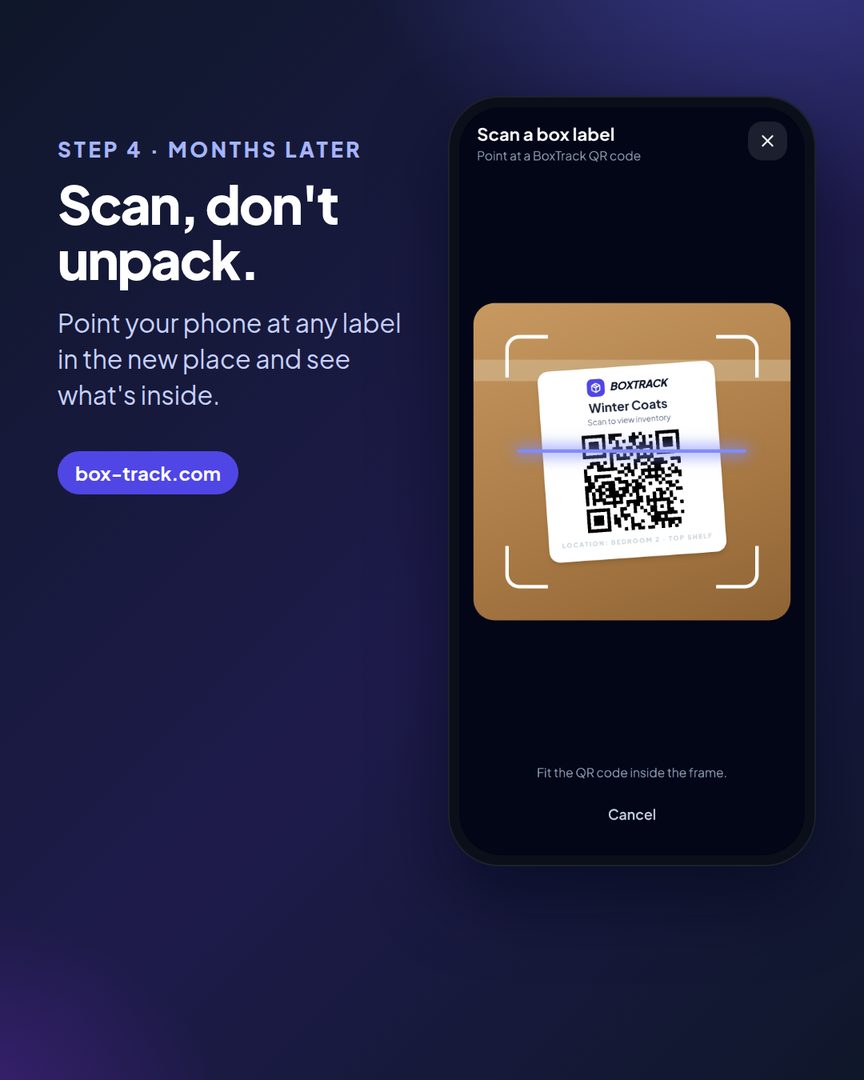
BoxTrack runs in your phone's browser on iPhone and Android. Make a box for each bin, take a photo of what's inside, and AI lists the items. You can fix the list by hand. Print QR labels on standard Avery sheets (5163 Letter or L7165 A4) or on plain paper. Scanning a label with any phone's camera opens that bin's list, and only you and the people you share with can see what's inside. To find a single thing, search for it and you'll see which bin it's in and where that bin sits. See how it works for storage. Your first box is free.
Sources
- TEC-IT, QR Code (2D barcode) knowledge base
- Apple Support, Scan a QR code with your iPhone or iPad
- Android Central, How to read a QR code with your Android phone's camera